

If you’re moving from Thunderbird to Outlook, it can feel a bit scary because so much important work and personal history lives in your inbox. You may worry about losing emails, breaking folder structures, or missing some important archive from years ago. Thunderbird to Outlook Converter gives you three clear modes so you don’t have to guess or rely on risky manual tricks, and that takes a lot of pressure off your shoulders. Instead, you can pick the path that matches what you want to do: create a PST, import directly into Outlook, or save everything as EML files for flexible archiving and future use.
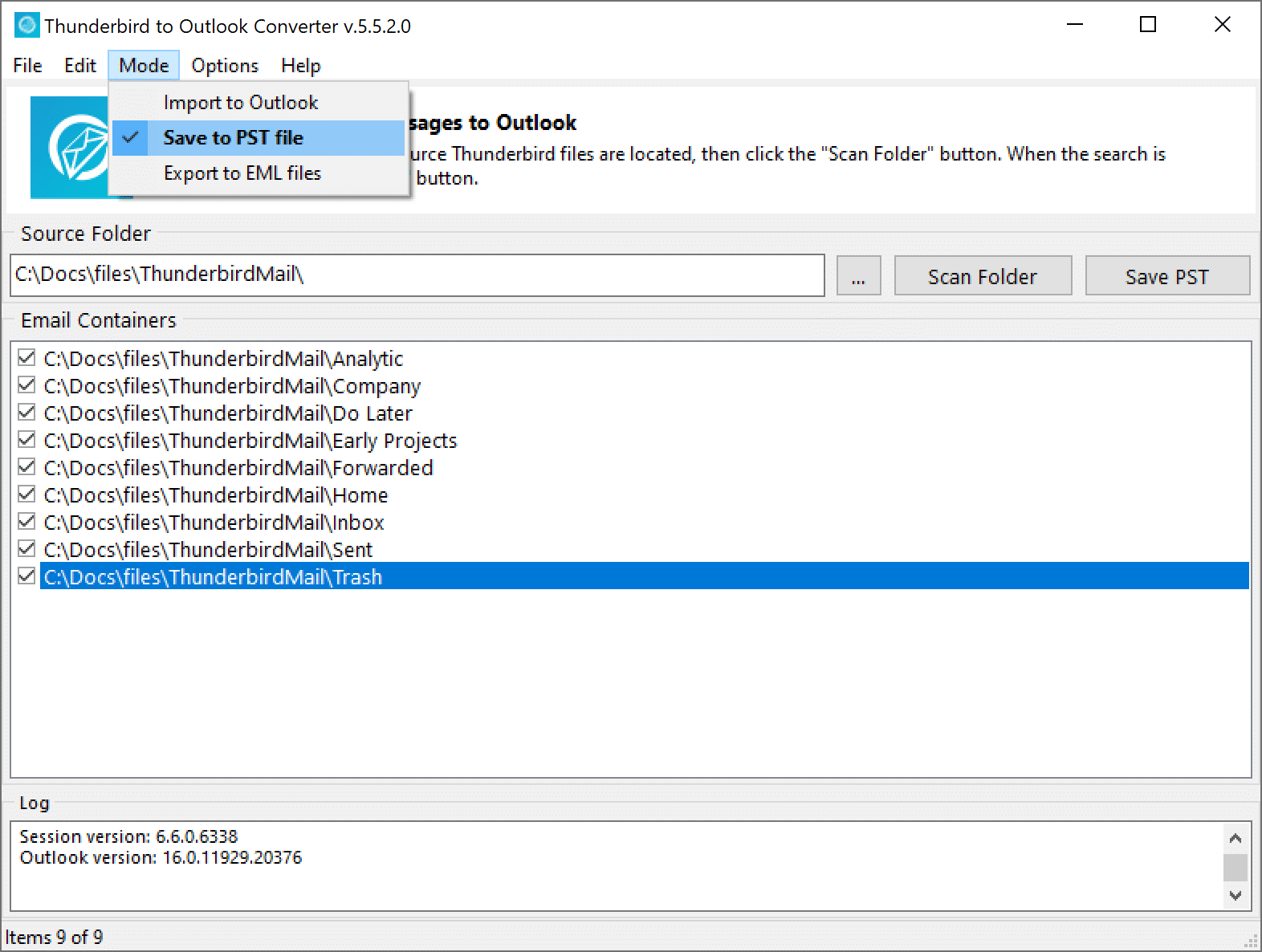
Quick overview of Thunderbird Converter modes
Before diving into details, here’s a simple overview you can keep in mind while reading:
- Save to PST file – turns Thunderbird emails into a new or existing Outlook PST file (default mode), great for email migration, backup, and future imports.
- Import to Outlook – sends Thunderbird emails straight into your Outlook profile, so messages appear directly in your Outlook folders.
- Export to EML files – exports messages as individual EML files inside a directory tree that mirrors your Thunderbird folders, ideal for archiving or use in other email apps.
Modes Comparison
MODE
PURPOSE
BEST FOR
Save to PST file
Create a new or add to
an existing Outlook PST
Full migrations
and backups
Import to Outlook
Import messages directly
into an Outlook profile
Users who want mail
inside Outlook now
Export to EML files
Export individual
messages as .eml files
Archiving and migrating to EML‑compatible apps
Now let’s unpack each one in everyday language, with real-life situations where each mode makes the most sense.
Mode 1: Save to PST file

What “Save to PST file” really does
Think of a PST file as a big “box” that Outlook uses to store your mail, calendar items, and contacts in one place. When you use the Save to PST file mode, the converter takes your Thunderbird emails and places them neatly into that box so Outlook can read them without any extra plugins or tricks. You can create a completely new PST file, or add Thunderbird emails to an existing PST file that you already use in Outlook, and your folder hierarchy and attachments can stay organized instead of turning into one giant, messy inbox that is hard to search and maintain.
You can either:
- Create a brand‑new PST file dedicated to your Thunderbird data, which keeps the migration clean and easy to back up.
- Add Thunderbird emails to an existing PST file you already rely on, which helps if you prefer to keep everything in one central Outlook data file.
- Preserve your folder layout and attachments during conversion, so your structure in Outlook feels familiar and you can quickly find older conversations.
When this mode is the best choice
The Save to PST File mode is usually the safest and most flexible option because the result is a single, portable file that Outlook understands natively. It becomes a strong choice when you want a long-term backup, are moving to a new device, or are consolidating several mail sources into one Outlook profile. Teams also benefit from it, because IT staff often prefer having PST files for archiving and later audits, as PSTs are easy to copy, move, and attach in different Outlook installations without changing the original mailbox.
- You want a portable backup of your Thunderbird mail that you can keep on an external drive, NAS, or another computer for peace of mind.
- You plan to import mail into Outlook later, maybe on a different machine, after a Windows reinstall, or during a staged company-wide rollout.
- You’re combining several Thunderbird profiles or old mail backups into one Outlook data file to simplify user access and reduce confusion.
Imagine you’re getting a new work laptop and your organization is standardizing on Outlook this year. You can export Thunderbird to a PST file on your old machine, store that PST on a secure drive, and then open it in Outlook on your new laptop when everything else is set up. In another scenario, you might be helping a colleague who has several old Thunderbird backups from previous jobs, by saving each one to its own PST, you can attach them in Outlook as needed without mixing everything together at once and without losing track of which backup came from which role.
Practical tips for using “Save to PST file”
To make this mode work smoothly, it helps to spend a few minutes planning how you want your Outlook data organized before starting the conversion. Decide whether you prefer one big PST or several smaller ones, and choose a storage location with enough free space so the process can finish without interruptions. When the conversion is finished, attach the PST in Outlook and check that your key folders, dates, and attachments are present; this quick review gives you confidence that nothing important was lost along the way.
- Decide if you want one PST per account or a single PST for everything; one PST per account keeps things logically separated, while one big PST keeps things simple to manage.
- Choose a location with enough free space and reliable storage, especially if you expect many years of email and attachments to be included.
- After the conversion, open Outlook and go to File → Open & Export → Open Outlook Data File to attach the PST and check folders, sample conversations, and search behavior.
Mode 2: Import to Outlook
 What “Import to Outlook” does in practice
 What “Import to Outlook” does in practice
The Import to Outlook mode is more direct and feels very natural if you already live in Outlook every day. Instead of building a PST file for later, this mode pushes your Thunderbird emails straight into your existing Outlook profile, so messages appear right alongside your current inbox, sent items, and other folders. It works best when your Outlook profile is local, such as a POP3 account that stores mail on your computer, or when your Outlook profile is IMAP and the connected mail server allows direct imports of messages without blocking or rewriting them.
This works best when:
- Your Outlook profile is local (for example, a POP3 account that stores mail on your PC), so new messages can be written directly into your data file.
- Your Outlook profile is IMAP and the connected mail server allows direct imports, which lets messages sync back to the server after they are added.
- Outlook is already set up and behaves well with your current data, so adding Thunderbird messages will feel like a natural extension of your existing mailbox.
When you might want this mode
You’ll probably like this mode if you want everything to “just show up” in Outlook without thinking about extra files. It’s ideal when you are helping someone who doesn’t care about what a PST is and simply wants to open Outlook and see all their old Thunderbird mail in familiar folders. The mode also suits admins and power users who are comfortable with profiles and want a streamlined, one-step import that blends the new messages into the user’s existing structure without adding another data file to manage.
- You want everything to show up inside your existing Outlook account, not as a separate file you have to open manually.
- You’re helping a colleague, family member, or client who wants to “open Outlook and see all my old Thunderbird mail” with minimal extra steps.
- You’re an admin or power user who is comfortable working with Outlook profiles and wants a fast, integrated migration path.
Picture this: your colleague has been using Thunderbird for years on a personal machine but has just joined a team that uses Outlook for every project. With this mode, you can bring their Thunderbird messages right into their new Outlook profile so they can search old and new mail in one place without learning a new workflow. In a small office where everyone is switching clients at the same time, Direct Import can also save time, because people don’t have to open extra data files or remember different mail locations; their migrated mail simply appears where they expect it.
Important notes before using “Import to Outlook”
Because this mode writes directly into an Outlook profile, it’s smart to be cautious and treat it like any other change to critical data. A quick backup of the Outlook profile can save you from headaches if something unexpected happens or if a server policy behaves differently than expected. It also helps to run a small test import with one or two folders before processing an entire mailbox, so you can confirm that dates, sender names, and attachments look right and that no duplicate or misplaced folders appear.
- Back up the Outlook profile first so you have a safe restore point if something doesn’t look right after import.
- Test with a small folder or two before doing a full import, checking dates, sender names, subjects, and attachments.
- Remember that some mail servers or profile setups may resist direct imports.
If this mode doesn’t cooperate, you can fall back to “Save to PST file” mode and import emails to PST file instead.
Mode 3: Export to EML files
What “Export to EML files” actually means
 What “Export to EML files” actually means
The Export to EML files mode takes each Thunderbird email and saves it as a separate .eml file, which can be opened by many different email clients and forensic tools. Instead of one big PST box, you end up with a structured set of folders containing individual message files that are easy to copy, scan, or share. By default, the converter saves EML files into a tree of directories that copies the structure of your Thunderbird folders, and each email goes into its own folder (directory), which makes it easier to keep messages isolated and to attach or move specific emails as needed.
Many other email apps and services can open or import EML files, so this format is very handy when you need flexibility or long-term storage. Because the exported directory tree mirrors your Thunderbird folders, you can browse your archive almost like you would browse it inside the original mail client, which feels intuitive even for less technical team members. This structure is especially helpful when you revisit an archive months or years later and want to quickly find project-related messages, client folders, or specific time periods without guessing where they ended up.
When EML is the right choice
You might choose this mode when you are not ready to commit fully to Outlook, or when you want an archive that remains useful across different tools and platforms. It’s a strong option if you plan to move to another email application that supports EML, or if you only need to keep or share certain folders or conversations outside of Thunderbird. Because each message lives in its own directory within a familiar folder tree, it also works well when you need to hand over data to another team, lawyer, or auditor who prefers file-based access over a single large data file.
- You don’t want to commit to Outlook yet and prefer a future‑proof archive of your messages that stays readable in many tools. (Windows Mail / Mail app, Apple Mail, Mozilla Thunderbird, The Bat!, eM Client, Mailbird, Postbox, Opera Mail, Eudora and others)
- You plan to move to another email application that supports EML files and can import from a structured folder tree.
- You only need to keep or share certain folders or specific conversations outside of Thunderbird, for example for a project handover or external review.
For example, a legal team might ask you to provide all emails related to a specific project over a given time frame. Exporting that project folder to EML creates a directory that mirrors the Thunderbird folder and contains one folder per message, so the team can open individual emails without touching your live mailbox or needing access to your full account. In another real-world case, a consultant might export only client‑related folders to EML before leaving a contract role, then keep those EML archives for professional records while leaving personal or unrelated mail behind on the original system.
Tips for clean EML exports
To keep your EML archive usable and easy to understand in the long run, it’s worth spending a bit of time on organization before and after export. Even though the converter already copies the Thunderbird folder structure, you can still group exported roots by year, account, or project to make browsing more intuitive. When importing EML files into another email application, it also helps to verify that the new client preserves essential details like dates, headers, and attachments so that your archive remains trustworthy and complete.
- Organize exports into top‑level folders by year, project, or account, while preserving the internal Thunderbird folder layout.
- Name folders clearly (for example,
ClientsorPersonal_Archive_2026) so future you, or a teammate, immediately understands what each set contains. - When importing into another app, check that it supports EML and preserves details like dates, sender addresses, subjects, and attachments across the entire folder tree.
How to choose the right mode (simple guide)
If you’re unsure which mode to pick, start with your goal and how you want to use your mail after the migration. Ask yourself whether you just need a safe backup, want everything inside Outlook right away, or prefer maximum flexibility to move between different tools later. Once you answer that question, the right mode usually becomes clear, and you can move forward without second‑guessing your choice throughout the process.
Here’s a quick way to decide that you can bookmark or even print out for your team:
“I want one file that Outlook can open anywhere.”
→ Use Save to PST file so you get a portable, standard Outlook data file.
“I want my Thunderbird mail to appear directly in my current Outlook inbox and folders.”
→ Use Import to Outlook, provided your Outlook profile and server allow direct imports.
“I want an archive I can keep, browse in folders, or move to other apps over time.”
→ Use Export to EML files, which keeps a directory tree that mirrors your Thunderbird folders and stores each email in its own directory.
If you’re still not sure, starting with Save to PST file is often the safest approach because you keep a single, portable backup you can reuse in different Outlook profiles or even on different machines. Later, if you discover that you also need EML for a legal request or another client, you can always run a second export focused on that specific folder or timeframe, so your first backup remains untouched.
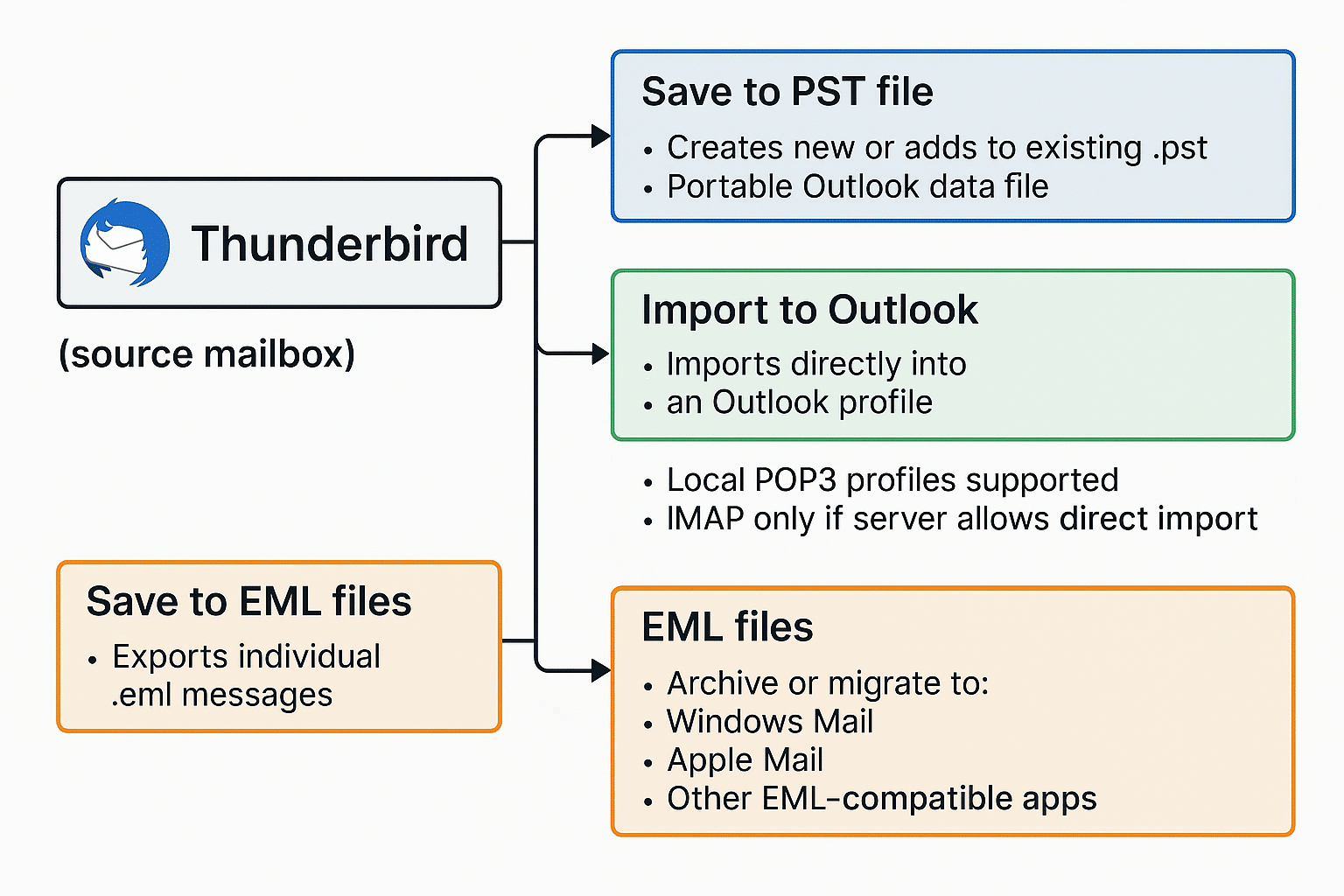
Simplified visual flow
Best practices for a safe, stress‑free migration
To keep your migration calm and predictable, it helps to follow a few simple steps instead of rushing through everything at once. A bit of preparation reduces the risk of surprises, and it gives you confidence that important messages, attachments, and folders are really where they should be in the new environment. Whether you are migrating your own mailbox or helping a whole team, these practices can save time and help you avoid frustrating do‑overs.
- Start with default settings for success
Always start from the default settings and use the Save to PST file mode first. The Thunderbird to Outlook Converter is designed and tested by a very knowledgeable team, so we’ve tuned the default settings for you to avoid email conversion issues right from the start. Once you become familiar with the program and see how smoothly it works, you can then try other modes like Import to Outlook if your Outlook profile and server support direct import. This approach keeps things simple, safe, and stress-free while you build confidence with the tool. - Create a local copy for peace of mind
Although our converter reads Thunderbird files without changing them, it’s a good idea to keep a local copy of your Thunderbird profile and, if convenient, your Outlook data. That way, you’re protected against rare external issues, like power outages or hardware glitches, and you’ll have a clean snapshot to fall back on if you want to review the original state later. - Try a small test run first
Start with one or two folders, Inbox and Sent are good choices, to confirm the results match your expectations. Check dates, subjects, senders, and attachments in Outlook or in your EML archive. If the test looks right, you can confidently proceed with the full migration. - Log what you migrate
Keep a short record of which profiles, folders, and date ranges you exported, plus the conversion mode you used. This simple log helps you repeat the process for other accounts, verify completeness, and answer questions from teammates or auditors later on. - Spot‑check attachments and key folders
After conversion, open a handful of messages that include attachments and review important folders, Inbox, Sent, project folders, and any custom archives. If those samples look correct, the rest of the mailbox is likely in good shape. - Schedule the migration when it’s convenient
Large mailboxes with many years of messages and attachments can take time. Run the conversion when you don’t need the computer for heavy tasks, during a break or after hours, to keep things smooth and uninterrupted.
When things don’t go as expected, resist the urge to try random fixes. Follow the detailed conversion guide first, and if you still need help, contact us – we’re here to assist.
Below are some of the questions people often ask when they are planning a migration from Thunderbird to Outlook and are trying to choose between PST, direct import, and EML exports.
Common questions about conversoin modes
Can I use more than one mode?
Yes, you can mix and match modes depending on your needs. For example, you might first create a PST file for safety and long‑term Outlook access, then also export a specific project folder to EML for a legal archive or external consultant. Using modes together can give you both portability and flexibility without forcing you into a single, permanent choice.
What if my Outlook profile doesn’t accept direct import?
If Import to Outlook doesn’t work because of profile or server limitations, you still have a reliable path forward. You can use Save to PST file mode to create a PST, and then open or import that PST in Outlook instead. This two-step route is often more compatible across different setups and keeps you from being blocked by a particular profile configuration.
Will my folder structure stay the same?
In a typical setup, the converter aims to keep your folder structure intact so you can still find messages where you expect them after the migration. When you export to PST or import directly into Outlook, your folders should appear in a similar layout. When you use EML export, the tool copies the Thunderbird folder structure into a directory tree and places each message in its own directory, which makes browsing the archive much more intuitive later and reduces the chance of losing context.
Is EML good enough for long‑term storage?
EML is a simple and widely recognized email format, so it works well for long‑term archives in many cases. When combined with clear folder naming and the default directory tree that mirrors Thunderbird, EML exports can be easy to understand even years later. As with any archive, regular backups and a short README or notes file explaining the structure can make it even easier for future you, or another team, to work with the data.
Final thoughts
Email migrations can feel stressful, but they don’t have to be confusing or risky. Once you understand what each mode does, Save to PST file, Import to Outlook, and Export to EML files with its mirrored directory tree, you can choose the path that matches your needs instead of guessing or relying on trial and error. With a bit of planning, a small test run, and a clear backup, you can move your Thunderbird data into Outlook or into flexible EML archives with confidence.
If this guide helped you, consider sharing it with someone else who’s moving from Thunderbird to Outlook so they can avoid common pitfalls. You’re also welcome to leave a comment with your questions or your own migration story, which can support others facing similar challenges. Finally, feel free to explore more articles on email backup, migration strategies, and organizing your digital life so that your inbox works for you, not the other way around.