

In recent years, Mozilla Thunderbird has remained a reliable email client for many users. However, as we move deeper into 2026, a noticeable shift is taking place. Increasingly, individuals and businesses are migrating from Thunderbird to Microsoft Outlook. This transition isn’t just about preference, it’s about functionality, integration, and future-proofing communication workflows.
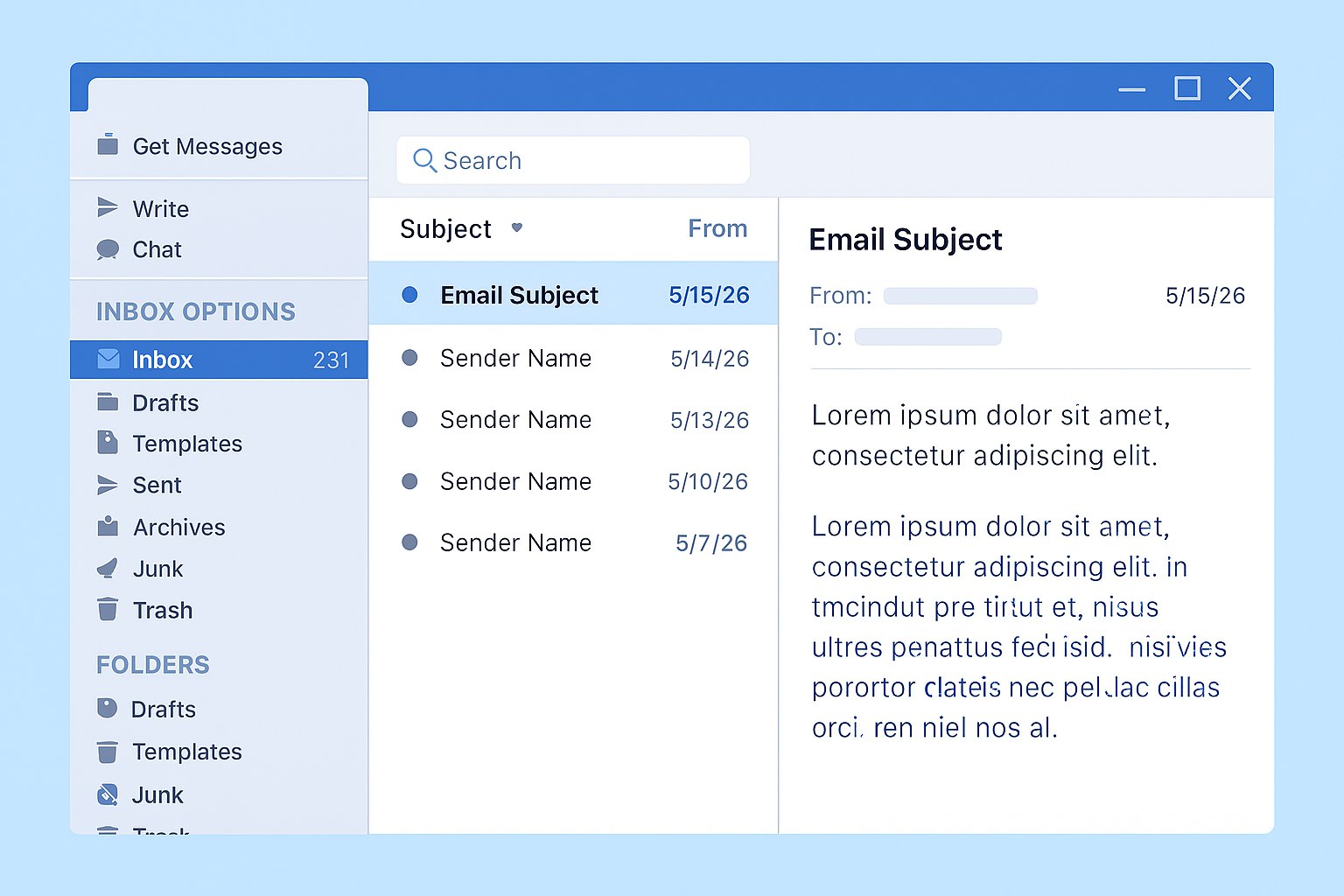
Whether you’re a freelancer, IT administrator, or part of a growing enterprise, understanding why this migration is happening can help you make an informed decision. In this article, we’ll explore the key reasons behind the switch, the limitations of Thunderbird, and how to migrate your data safely and efficiently.
Thunderbird’s Strengths and Its Limits
Thunderbird has long been appreciated for its open-source nature, flexibility, and cost-effectiveness. For users who value customization and simplicity, it’s been a solid choice. Nevertheless, as digital communication demands evolve, Thunderbird’s limitations have become more apparent.
- Limited enterprise support. Thunderbird lacks native integration with Exchange servers and Microsoft 365, which are essential for many businesses.
- Plugin dependency. Many features require third-party plugins, which often break or become unsupported after updates.
- No mobile app. Unlike Outlook, Thunderbird doesn’t offer a dedicated mobile experience, making it harder to stay connected on the go.
- Manual migration challenges. Exporting and importing data between systems is time-consuming and error-prone without specialized tools.
As a result, users are increasingly seeking alternatives that offer better performance, security, and scalability.
Why Outlook Is the Go-To Choice in 2026
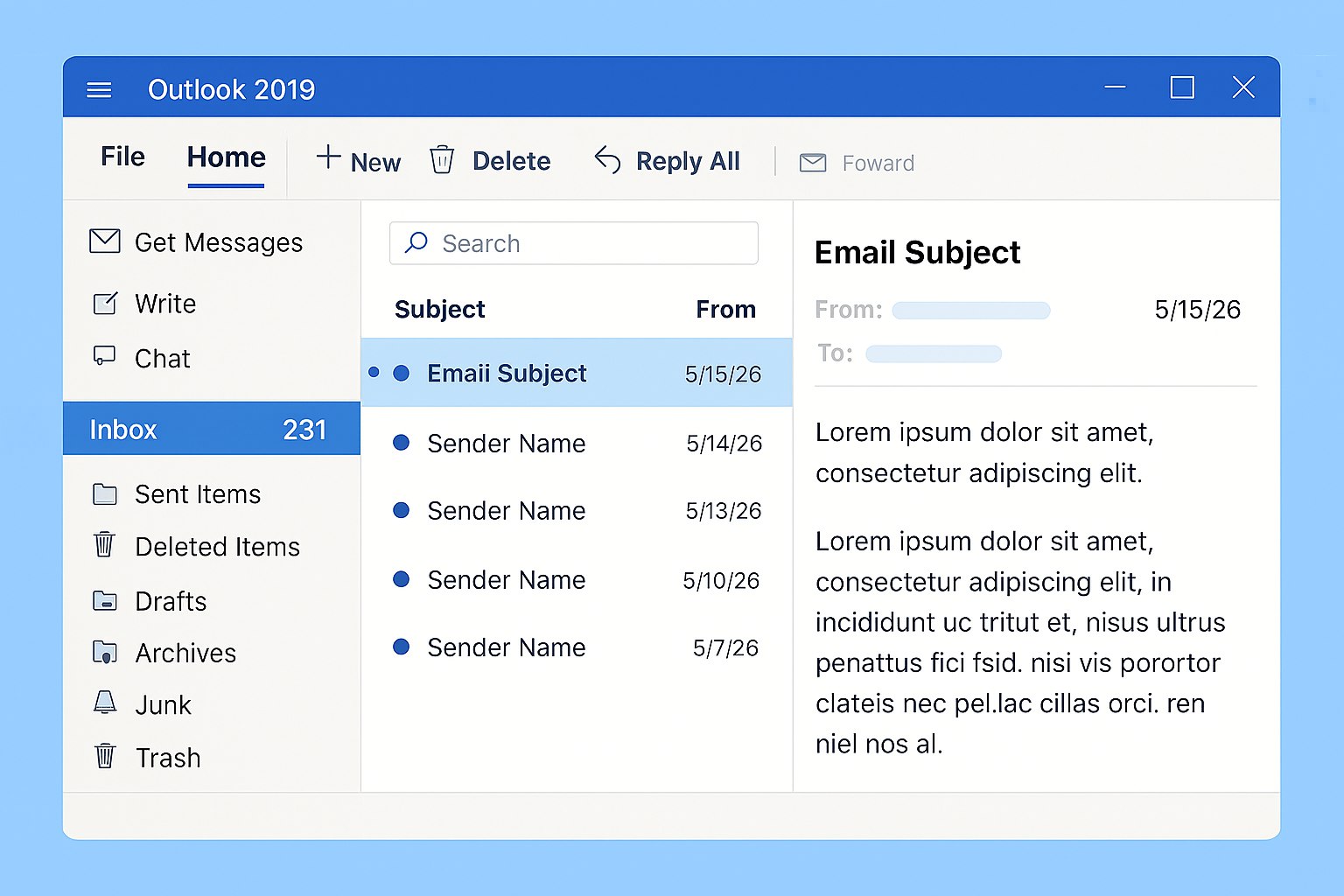
Microsoft Outlook has evolved into a comprehensive communication hub. Not only does it offer robust email management, but it also integrates seamlessly with calendars, contacts, tasks, and cloud services. Here’s why Outlook is winning over Thunderbird users:
1. Seamless Microsoft 365 Integration
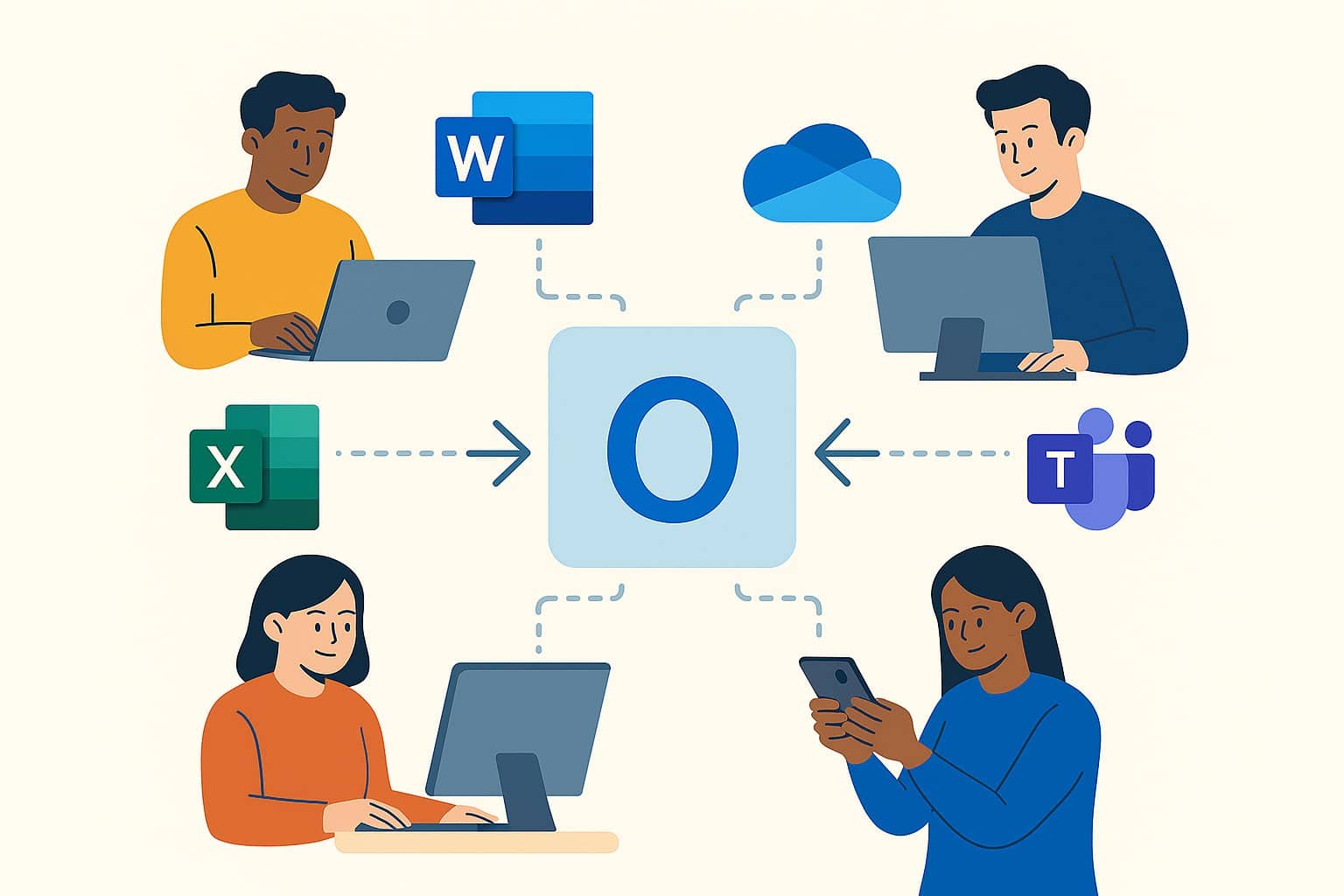 Outlook works hand-in-hand with the entire Microsoft 365 suite. Users can quickly jump from emails to editing documents in Word or crunching numbers in Excel. With just a few clicks, they can schedule Teams meetings, share files through OneDrive, or collaborate in real time. This tight integration saves time and reduces friction across workflows.
Moreover, Outlook supports consistent user experiences across devices and platforms. Whether someone works from a desktop, tablet, or phone, they stay connected and productive. Businesses already using Microsoft 365 benefit from centralized management, unified security policies, and streamlined onboarding. As a result, teams communicate better, respond faster, and stay organized.
For organizations of all sizes and backgrounds, Outlook offers a familiar, inclusive environment that adapts to diverse needs. It’s not just an email tool, – it’s a productivity engine built for modern work.
2. Enhanced Search and Organization
 Managing email can quickly become overwhelming, especially in fast-paced work environments. Outlook addresses this challenge with a robust set of search and organization tools designed to help users stay focused and efficient. Its advanced search filters allow people to locate specific messages by sender, date, keyword, or attachment type, often in seconds. These filters reduce the need to scroll endlessly through crowded inboxes.
In addition to search, Outlook offers customizable folder rules that automatically sort incoming messages based on criteria like subject line, sender, or priority level. Users can create nested folders, apply color-coded categories, and set up alerts for high-importance emails. These features work together to streamline inbox management and minimize distractions.
Tagging options further enhance organization by allowing users to label messages with context-specific markers. Whether someone’s tracking client requests, internal updates, or project milestones, they can quickly identify and retrieve relevant emails. As a result, teams spend less time hunting for information and more time acting on it.
Outlook’s organizational tools empower users of all backgrounds and abilities to take control of their communication flow. By reducing clutter and surfacing what matters most, Outlook helps people work smarter, not harder.
3. Enterprise-Grade Security
 In 2026, cybersecurity is more than a concern, – it’s a business imperative. With rising threats from phishing, ransomware, and data breaches, organizations need tools that protect sensitive information without slowing down productivity. Outlook delivers on this need with enterprise-grade security features built directly into its core.
Outlook uses end-to-end encryption to ensure that emails remain private and tamper-proof during transmission. It also includes advanced phishing detection powered by Microsoft Defender, which flags suspicious messages and blocks malicious links before they reach the inbox. These protections help prevent human error and reduce the risk of costly security incidents.
Beyond threat prevention, Outlook supports compliance with global data protection regulations such as GDPR, HIPAA, and ISO 27001. Built-in tools allow administrators to manage retention policies, audit access, and enforce data loss prevention (DLP) rules. This level of control is essential for industries like healthcare, finance, and government, where data integrity is non-negotiable.
By combining proactive threat defense with robust compliance capabilities, Outlook empowers organizations to communicate confidently. It protects users of all backgrounds and technical abilities, ensuring that everyone can work securely, – whether from the office, at home, or on the move.
4. Cross-Device Synchronization
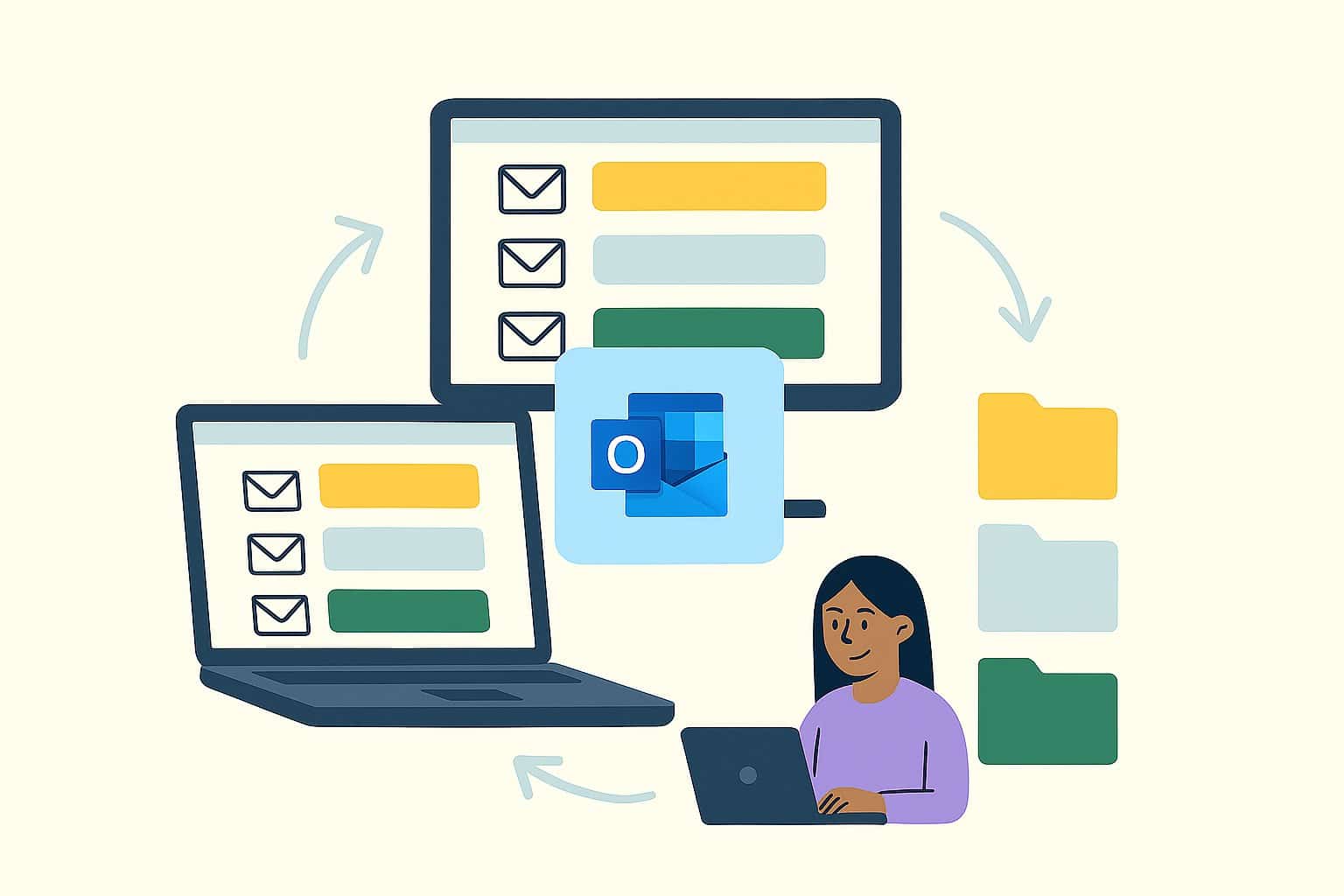 Modern work happens everywhere: at desks, on phones, and in transit. Outlook keeps pace by offering seamless synchronization across desktop, mobile, and web platforms. Whether someone checks their inbox from a laptop in the office or a smartphone on the go, they encounter a consistent, familiar interface that supports productivity without interruption.
Emails, calendars, contacts, and tasks stay perfectly in sync across devices. Users can start drafting a message on one platform and finish it on another without losing formatting or attachments. Notifications, flags, and read statuses update in real time, ensuring that everyone stays informed and aligned.
This cross-device flexibility empowers individuals and teams to respond quickly, manage schedules efficiently, and maintain momentum regardless of location. Outlook’s design accommodates diverse working styles and accessibility needs, making it a reliable tool for professionals across industries, generations, and abilities.
By removing barriers between devices, Outlook helps people stay connected to what matters, anytime, anywhere.
5. Reliable Support and Updates
 In a fast-changing digital landscape, dependable support and consistent updates are essential. Outlook stands out by offering both. Unlike Thunderbird, which relies primarily on community-driven assistance, Outlook provides professional customer service backed by Microsoft’s global infrastructure. Users can access help through multiple channels, including live chat, documentation, and enterprise-level support plans.
Regular updates ensure that Outlook stays compatible with the latest operating systems, security protocols, and productivity tools. Microsoft continuously improves performance, patches vulnerabilities, and introduces new features based on user feedback. These updates roll out seamlessly, minimizing disruption and keeping systems secure.
For organizations managing large teams or sensitive data, this level of reliability is critical. IT departments benefit from predictable maintenance cycles and centralized control, while end users enjoy a stable experience across devices. Outlook’s commitment to long-term support helps businesses adapt to evolving technologies without sacrificing continuity or trust.
By combining expert assistance with proactive development, Outlook empowers users of all backgrounds to work confidently and stay ahead.
Migrating from Thunderbird to Outlook, What You Need to Know
Switching email clients can feel overwhelming. Thunderbird stores emails in MBOX format, while Outlook uses PST files. Without the right tools, converting between these formats can be frustrating and risky.
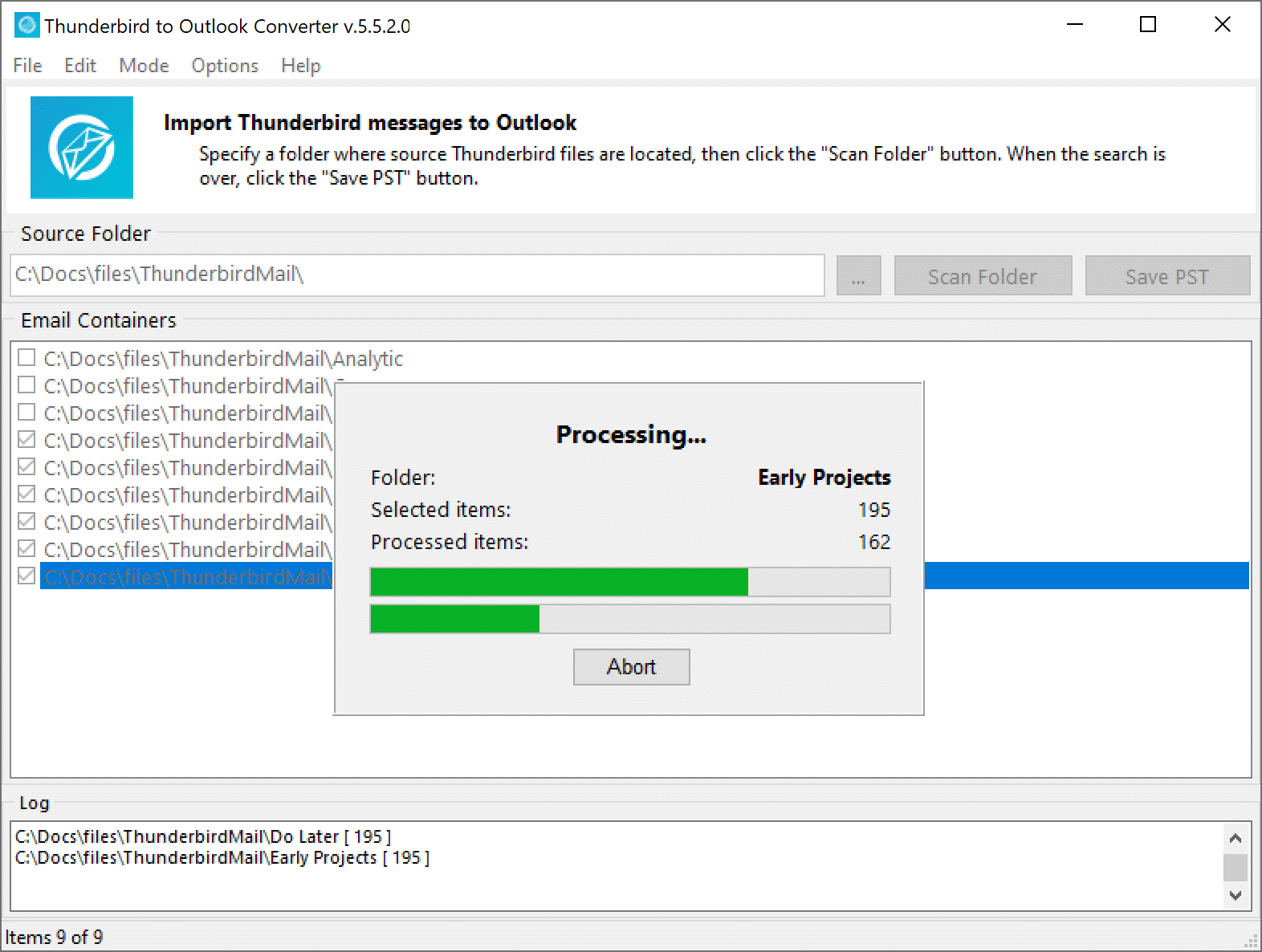
Fortunately, the Thunderbird to Outlook Converter simplifies the process. Here’s what it offers:
- Full mailbox conversion, including attachments and folder hierarchy
- Preservation of email formatting, timestamps, and metadata
- Batch processing for multiple profiles or accounts
- Intuitive interface with step-by-step guidance
By using a dedicated tool, you eliminate the risk of data loss and ensure a smooth transition.
Who’s Making the Switch?
The migration trend spans a wide range of users. From solo professionals to enterprise IT teams, Outlook is becoming the preferred platform for modern communication.
- Freelancers seeking better calendar and contact integration
- Remote teams adopting Microsoft 365 for collaboration and file sharing
- IT departments consolidating email systems for easier management
- Legal and financial professionals requiring secure archiving and compliance
Moreover, many users cite improved productivity and peace of mind as key benefits of switching to Outlook.
Outlook vs Thunderbird, A Quick Comparison
| Feature | Thunderbird | Outlook |
|---|---|---|
| Microsoft 365 Integration | No | Yes |
| Mobile App | No | Yes |
| Enterprise Support | Limited | Full |
| Security Features | Basic | Advanced |
| Migration Tools | Manual | Automated (via converter) |
Ready to Make the Move?
In conclusion, Thunderbird has served many users well over the years, offering a reliable and customizable email experience. However, as digital communication evolves, the demands of 2026 require tools that go beyond the basics. Microsoft Outlook stands out with its seamless integration across devices, advanced productivity features, and robust support for modern workflows — from calendar coordination to cloud-based collaboration.
If you’re ready to upgrade your email experience, now is the time to act. Migrating to Outlook not only streamlines your daily communication but also positions you to take full advantage of the latest innovations in email technology. Whether you’re managing personal correspondence or coordinating across teams, Outlook delivers the speed, security, and sophistication that today’s users expect.
Don’t let outdated tools hold you back. Make the switch and experience the difference.
Explore our Thunderbird to Outlook Converter and join thousands of users who’ve made the switch with confidence.
Frequently Asked Questions
Can I migrate Thunderbird emails to Outlook without losing attachments?
Yes! Our converter preserves attachments, formatting, and folder structure during migration.
Is Outlook better than Thunderbird for business use?
Outlook offers advanced features like calendar integration, Microsoft 365 support, and enterprise-grade security, making it ideal for business users.
Do I need technical skills to use the converter?
No. The tool is designed for both beginners and IT professionals, with a user-friendly interface and step-by-step guidance.
What file formats are supported?
The converter supports MBOX files from Thunderbird and converts them into PST format for Outlook.